Kairo
Portfolio
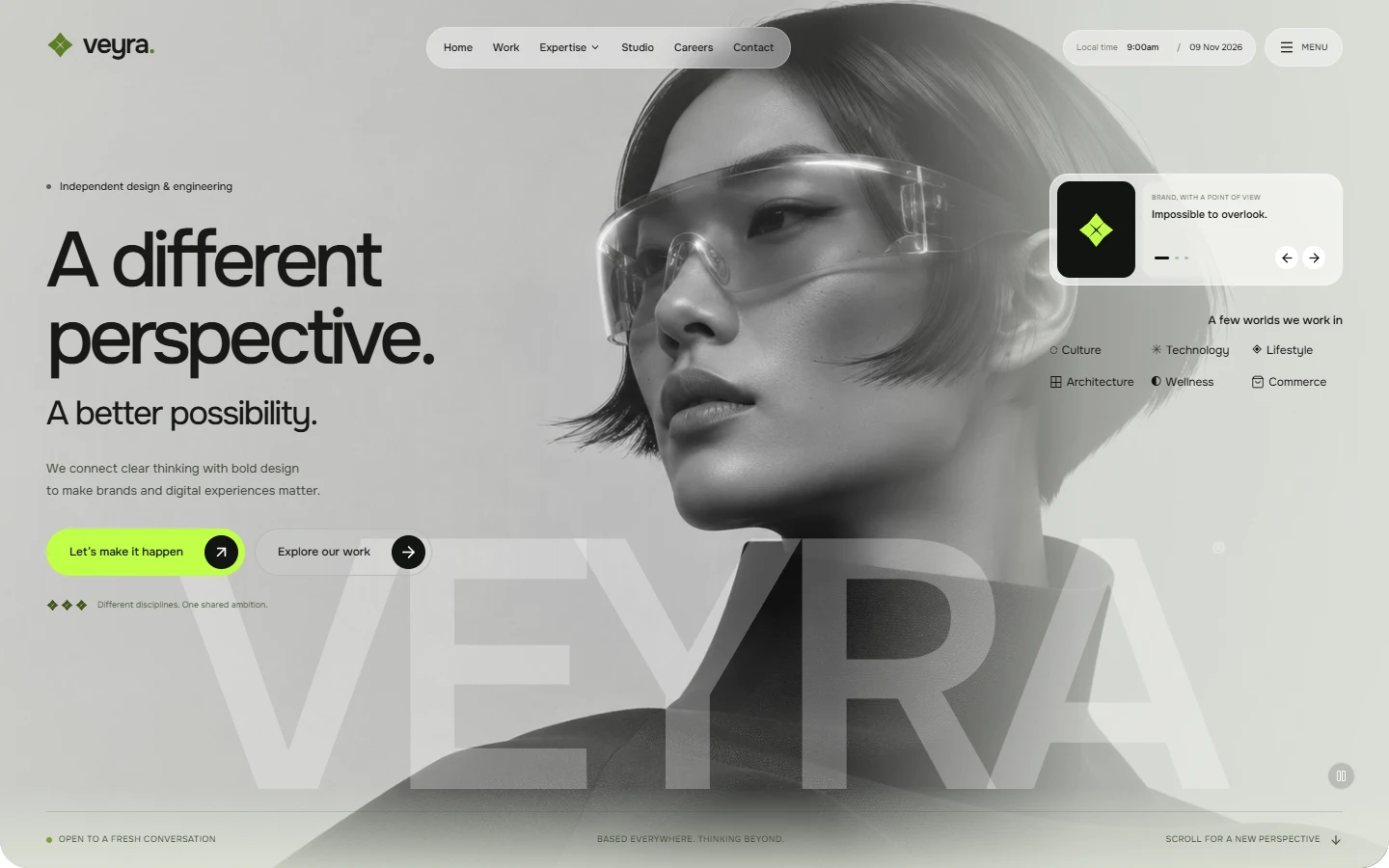
An editorial design-and-engineering studio landing page with an original monochromatic portrait, liquid neon cursor reveal, animated capability carousel, concept projects, expandable services, scroll-driven numbers, accessible overlays and a local project-brief composer.
Build your own website with the Veyra template, from the first preview to your final review.
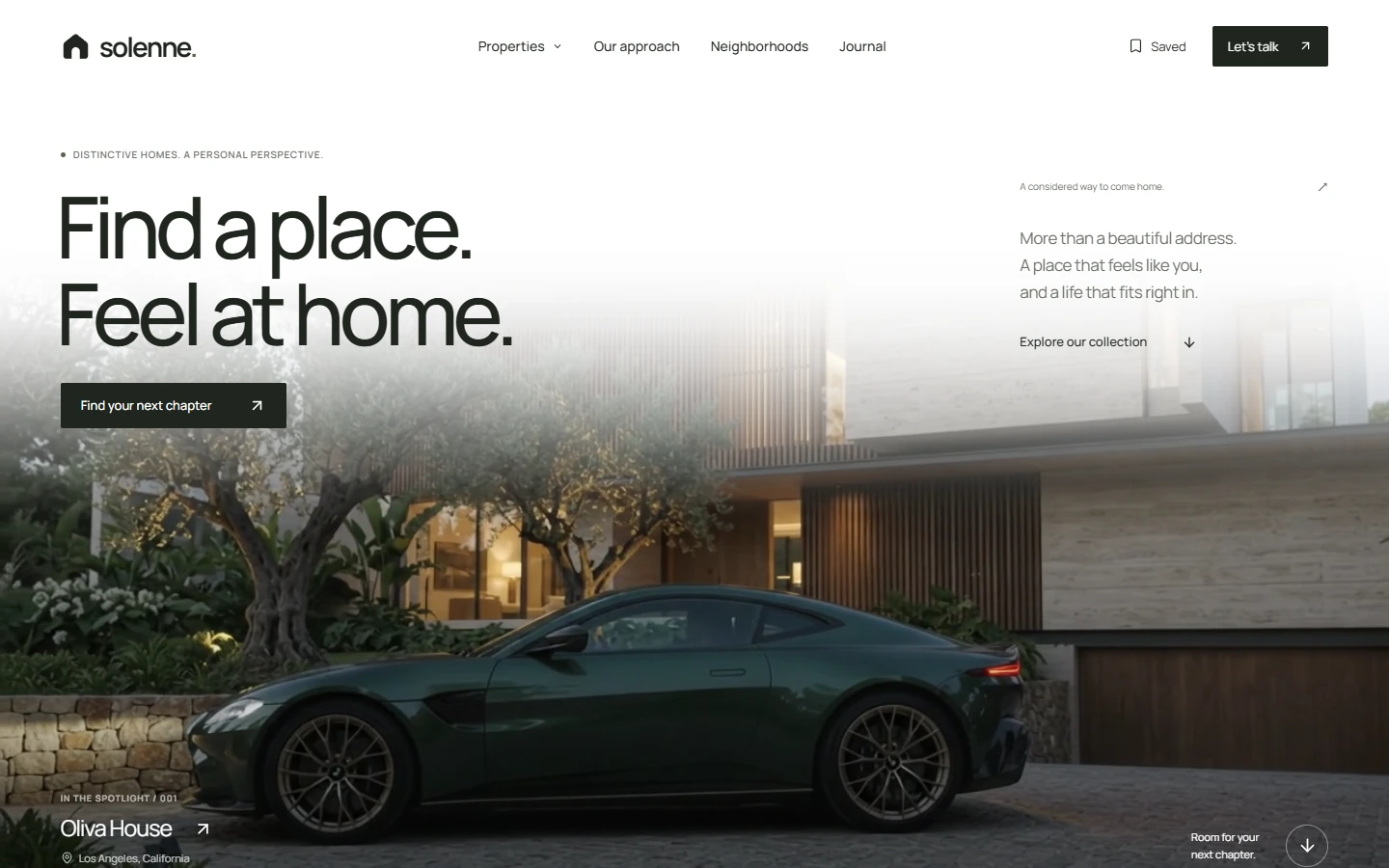
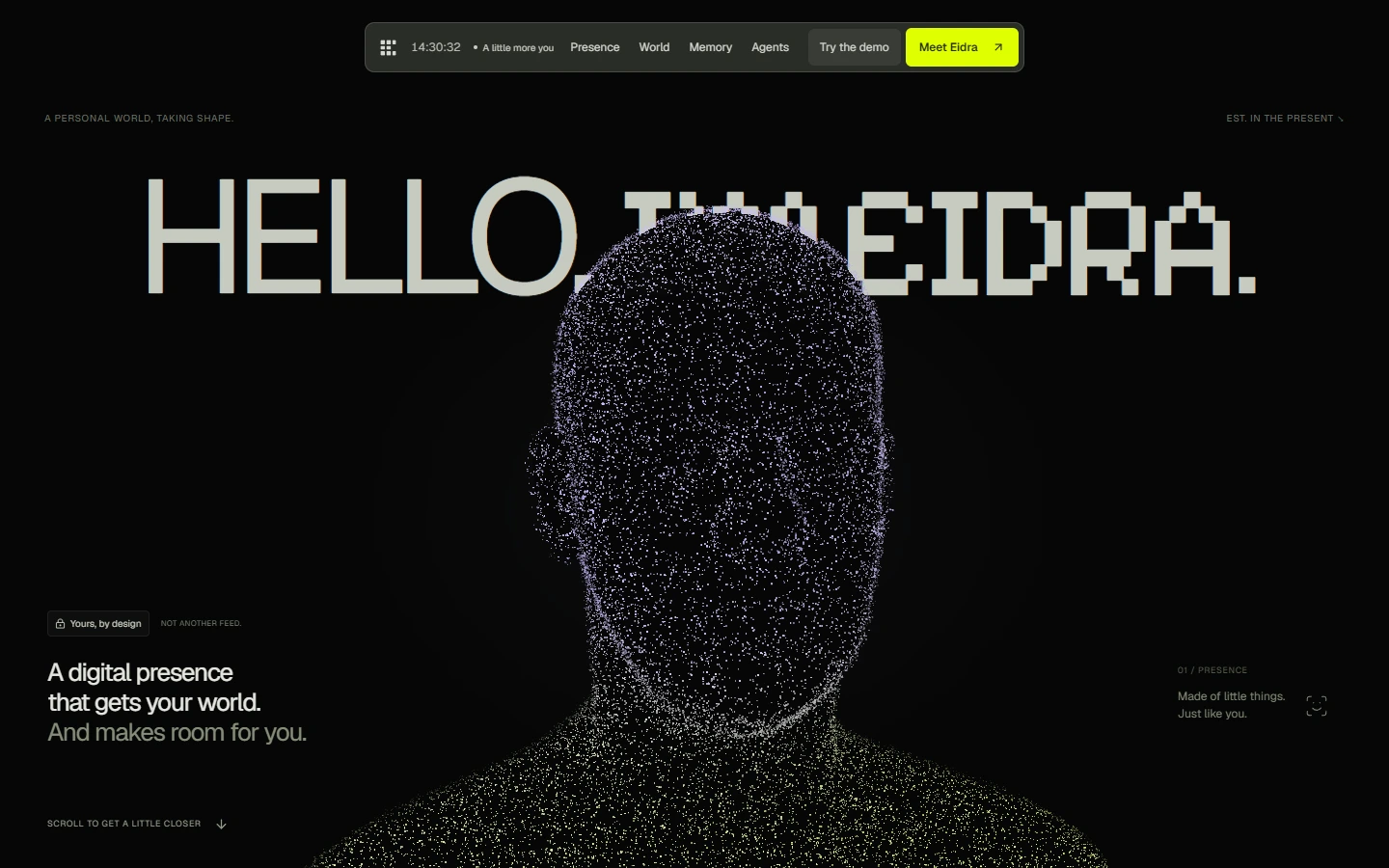
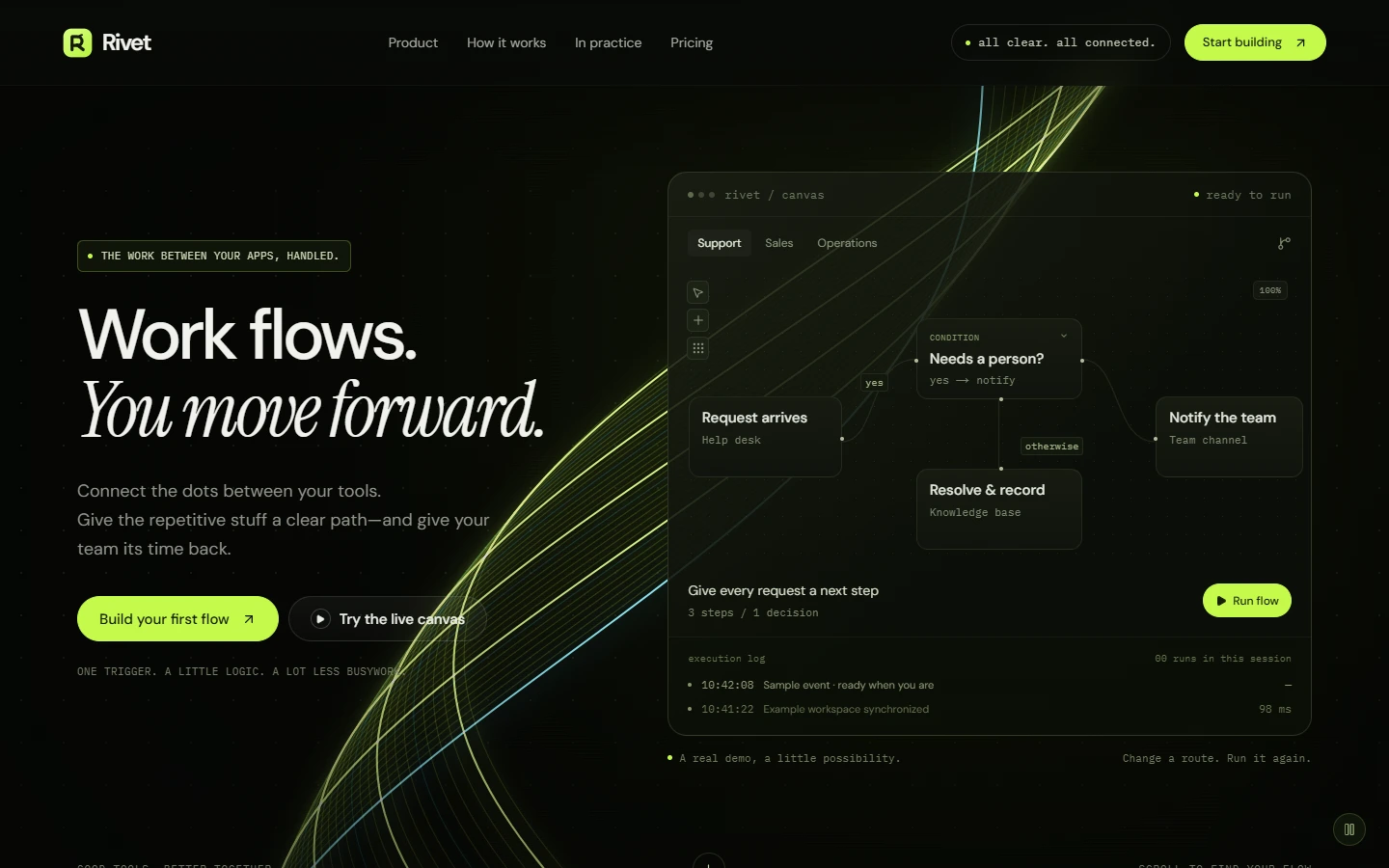
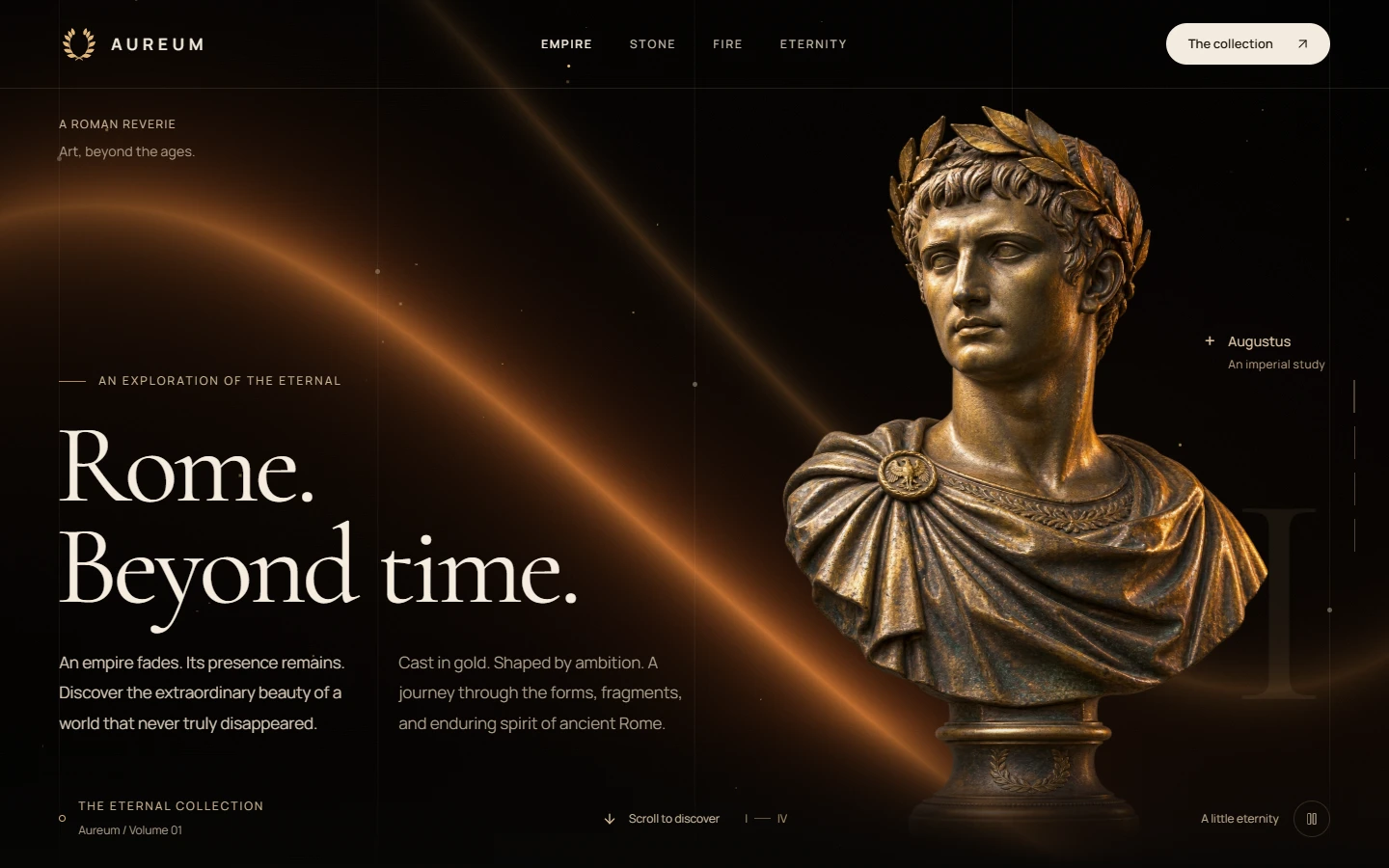
Watch the motion preview, then open Live Preview to try Veyra in your browser. Look at the layout, typography and interactions you want to bring into your website.
Select Copy full prompt to copy the design instructions. Keep the layout, asset references and interaction details together so your AI assistant has the context it needs.
Use Build In to copy the prompt and open your preferred AI coding assistant or website builder. Paste it when needed, review the instructions and start generation in that platform.
Tell your assistant whether you are starting a new website or extending an existing project. Share your framework, components and design rules, and ask it to adapt the template to those foundations.
Update the copy, colors, fonts and imagery to fit your brand. Refine one section or interaction at a time, keeping the parts you have already approved and using assets you have permission to publish.
Check mobile layouts, keyboard navigation, reduced motion, links and loading behavior. Add your own page titles and descriptions, then publish with a host that supports your project's actual stack.
Answers about Visualmodo website templates, AI prompts and making the design your own.
Veyra is a agency website template from Visualmodo. Its preview shows the visual direction and motion, while the accessible prompt gives your AI assistant instructions for creating an implementation you can customize.
Veyra is listed as a Free template. You can copy its available full prompt and use Build In to continue in your chosen platform. Free prompt access does not include the original source code or credits for an external AI service.
Choose a platform in Build In to copy the complete available prompt and open that service. Some destinations can prefill it; otherwise, paste the copied text. If clipboard access is blocked, use the manual-copy dialog. You review the prompt and start generation yourself.
AI-generated results can vary with the assistant, project context and available assets. Use the preview as a visual reference, keep the complete prompt and compare spacing, typography and motion as you refine the result. A prompt is not a copy of the original source code.
You can ask your coding assistant to adapt the design to your current framework and components. Explain the surrounding page, existing styles and required behavior before generating changes. Review the output for compatibility rather than replacing your project's established structure.
Yes. Ask your assistant to adjust the generated implementation to your brand and content. Work through focused changes to colors, type, sections and motion, then check responsive layouts and accessibility after each change.
Original source code is not currently available to copy or download from this page. When a full prompt is accessible, you can use it to generate your own implementation in your preferred coding assistant or website builder.
Follow the build and deployment instructions for your generated project. Static websites and applications with server features need different hosting capabilities. Before publishing, review asset permissions, metadata, forms and navigation, and test the finished website on mobile and desktop.